
Chapter 5 · 5.12
Transferring a domain away: transfer code (EPP) and transfer lock
Want to transfer a domain to another provider? Then that provider will need the transfer code, also known as the EPP code, authorisation code or transfer code. You can request this yourself in My WebOké.
Requesting the transfer code
- Open the domain page (see The domain page: everything about one domain) and scroll to the Advanced Features card.
- Next to Transfer code (EPP), click Show EPP code.
- The code appears in place of the button (1). Click Copy (2) to copy it.
- Paste the code with your new provider.
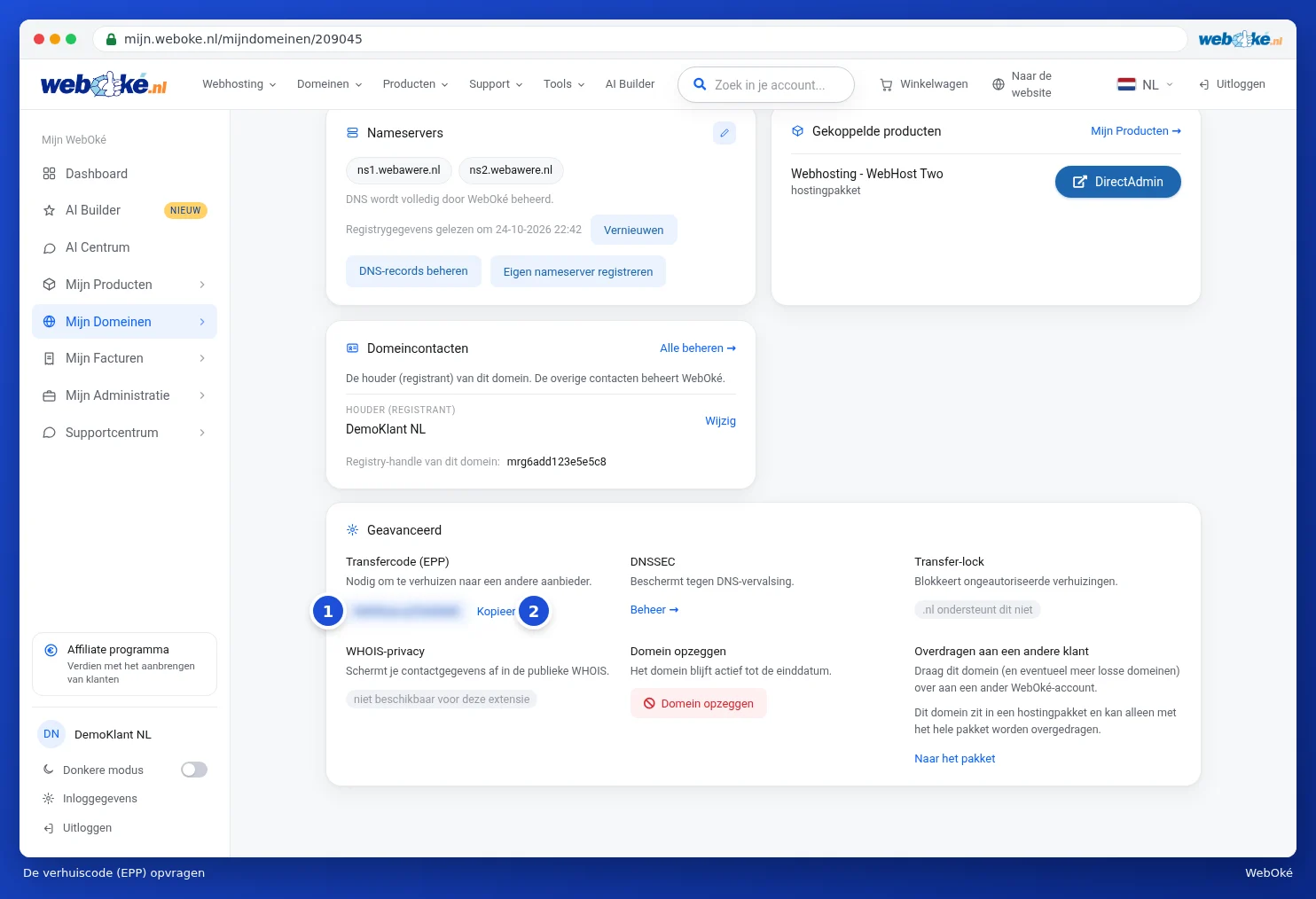
You can also request the code in the Transfer centre, under Request EPP codes. There, all your domains are listed one below the other (see The transfer centre: transferring domains to WebOké). Codes are valid for 30 days.
Please note: the transfer code is the key to your domain. Whoever has it can transfer the domain. Only give it to the provider you're moving to.
For a .be domain, we cannot retrieve the transfer code ourselves. You'll need to request this yourself from DNS Belgium, the registry for all .be domains.
The transfer lock
A transfer lock blocks transfers that you haven't requested yourself. In the Advanced Features card, next to Transfer-lock, you can see whether the lock is on or off, along with a link to enable or disable it.
- Transferring your domain away? Turn off the lock first, otherwise the registry will refuse the transfer.
- Staying with WebOké? Leave the lock on.
Not every extension has a transfer lock. For extensions including .nl, .eu, .be and .nu, for example, you'll see .nl does not support this. For these extensions, the transfer code itself is the security measure.
What happens after the transfer?
The new provider starts the transfer using your code. Once the domain has been transferred, your new provider will take care of renewal from then on. If the domain is part of a hosting package, remember your website and e-mail too: these won't move automatically. If you want to cancel the package afterwards, read Cancelling, undoing cancellation, or transferring a product.