
Chapter 13 · 13.2
Submitting a ticket
Watch it in a short video
Can't the AI assistant solve it, or would you rather speak to a person? Then submit a ticket. Your question goes to our support team and you'll receive the answer by email and in My WebOké.
How to submit a ticket
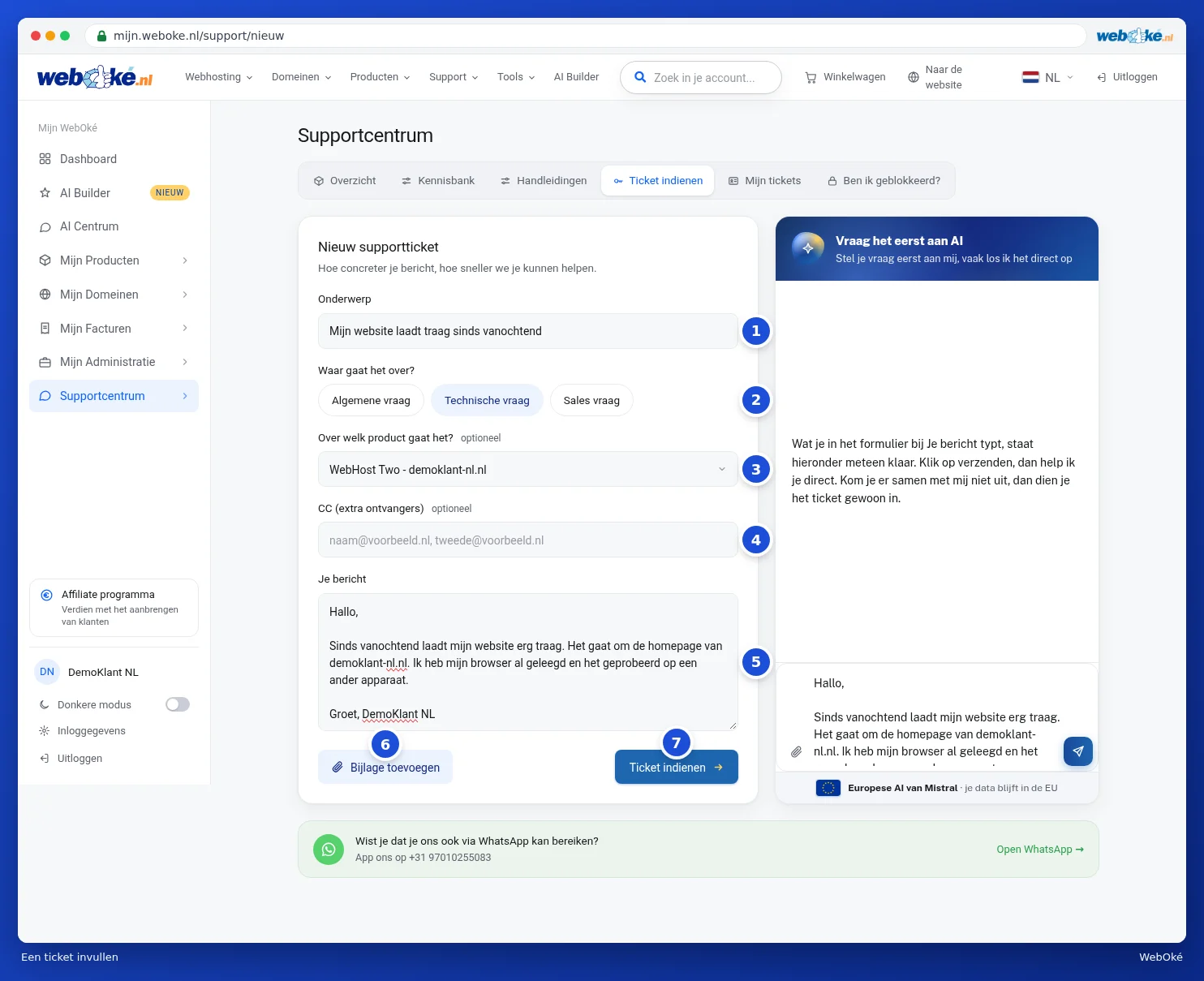
- Go to Support centre and click the Submit a ticket tab.
- Under Subject (1), enter a short description, for example My website has been loading slowly since this morning.
- Under What is it about? (2), choose the type of question: General question, Technical question or Sales question. A sales question goes directly to our sales department.
- Under Which product is it about? (3), choose the package or domain your question relates to. This isn't required, but it helps us look into it faster.
- Do you want someone else to receive the replies too, for example your web developer? Then enter one or more email addresses under CC (extra recipients) (4), separated by a comma.
- Under Your message (5), describe the issue as specifically as possible: what isn't working, since when, and what you've already tried yourself.
- Do you have a screenshot or another file? Click Add attachment (6). You can select multiple files.
- Click Submit a ticket (7).
After submitting, you'll go straight to your new ticket. You'll also receive a confirmation by email with the ticket number.
Choosing the right product
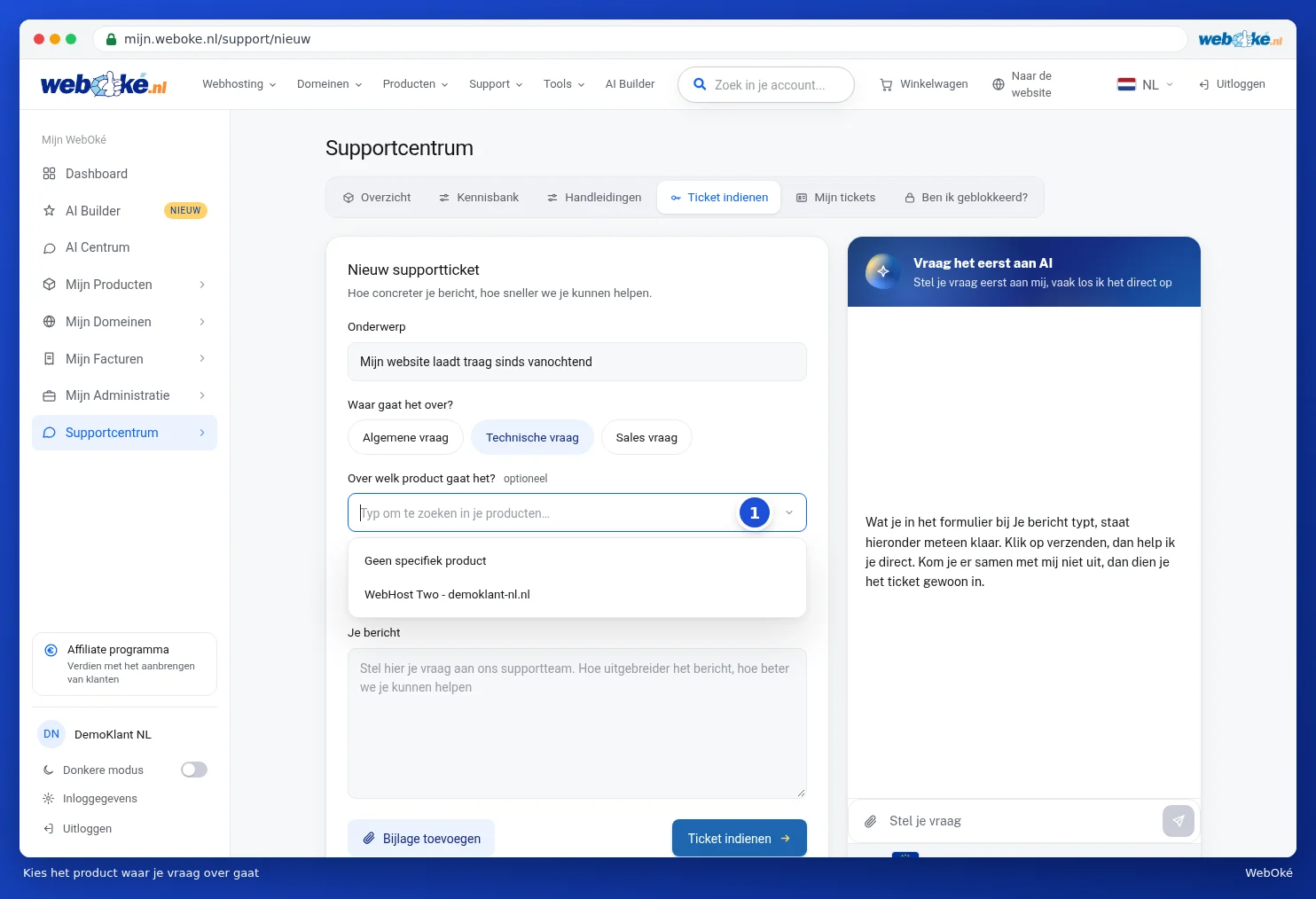
Click the field under Which product is it about? (1). You'll then see all your products. Type part of the name to narrow down the list and click the right product. If your question doesn't relate to one specific product, choose No specific product or leave the field empty.
The AI assistant thinks along
To the right of the form is the Ask the AI first box. Whatever you type under Your message appears there straight away. Click send and the AI assistant will try to solve your question right away. If it succeeds, you won't need to submit a ticket at all. If you can't solve it together, the assistant can fill in your ticket for you. Check the form and submit it if it's correct.
If you've chatted with the assistant, the tick box Send the conversation with the AI assistant along appears above the button. Leave it ticked: our team can then see what you've already tried and you won't have to explain everything again.
Please note: if you use the AI assistant for the first time, it will first ask for your consent once. Find out more in The AI assistant: what can it do for you?.
Other ways to reach us
- WhatsApp: use Open WhatsApp below the form to send us a message via WhatsApp.
- Without an account: can't log in? Then use the ticket form on the website. See Contact without an account (guest ticket).
- An IP block: for this, the easiest way to create a ticket is from Am I blocked?, which automatically includes all the information about the address. See Am I blocked? Release your own IP address.
Tip: the more specific your message, the faster we can help you. Always mention the domain name or email address involved and the error message you see, or attach a screenshot of it.