
Chapter 12 · 12.3
MCP server: connecting your own AI to your package
Do you already work with an AI tool, such as Claude, ChatGPT, Mistral Vibe, Claude Code or Codex? Then you can connect it directly to your hosting package. Your AI tool can then work in the domains folder of your package: building sites, editing files, tracking down errors and carrying out maintenance. This works via MCP, a standard that lets AI tools work securely with other services.
Where do you find the MCP server?
Go to My Administration and click the MCP server for AI tab. At the top right is Your MCP endpoint (1): the address you enter in your AI tool. Use Copy (2) to copy it to the clipboard.

Below the endpoint you'll see three counters: Active connections (maximum 10), Last activity and Packages with AI access.
Quick connect (recommended)
The easiest way is to connect with permission via a WebOké screen (OAuth). That way you don't need to store a token.
- Under Quick connect, choose your AI tool (1).
- For Claude, ChatGPT and Mistral Vibe, click Open settings. Your tool's settings page opens; paste the endpoint there as a new connector. Under Steps you'll find exactly what to do for each tool.
- For Claude Code and Codex, copy the command or configuration with Copy and put it in your terminal or configuration file.
- Your AI tool then sends you to WebOké. Sign in and give permission. After that, the connection is active.

Please note: with ChatGPT you need Developer mode. Full use is possible with a Business or Enterprise subscription; with Pro and Plus the AI can only read.
Creating a token (only for tools without OAuth)
If your tool doesn't support connecting with permission, create a token instead. The token works like a password: keep it in your tool and nowhere else.
- Under New token, enter a Name (1), for example Claude Code on my laptop. This name is just for yourself.
- Under Which packages?, choose All packages or Choose packages, and choose the access level (2): Read only or Read and change.
- Under Valid for, choose how long the token works (3): 30, 90 or 365 days.
- Click Continue to confirmation (4).

| Access | What can the AI do? |
|---|---|
| Read only | View files, search, and view the error log. |
| Read and change | Also create, edit, rename and delete files, and change DNS records. |
Please note: if change access is switched on for at least one package, the AI may change the DNS of all your domains at WebOké. Choose Read only if you only want the AI to look, not change anything.
Confirming with your password and a code
For your security you sign in again before we create the token, even though you are already signed in. Under Your request you'll see once more what you've chosen. Enter your Password (1) and the Security code (2) that we send to your sign-in e-mail address. If you use an authenticator app, enter the code from the app. Click Create token. Didn't receive a code? Click Send the code again.

Copying the token
You'll now see Your token has been created. You only see the token (1) once: copy it straight away with Copy (2) and put it in your AI tool. If you close the page, it's gone and you'll need to create a new token. You'll also receive an e-mail as confirmation.
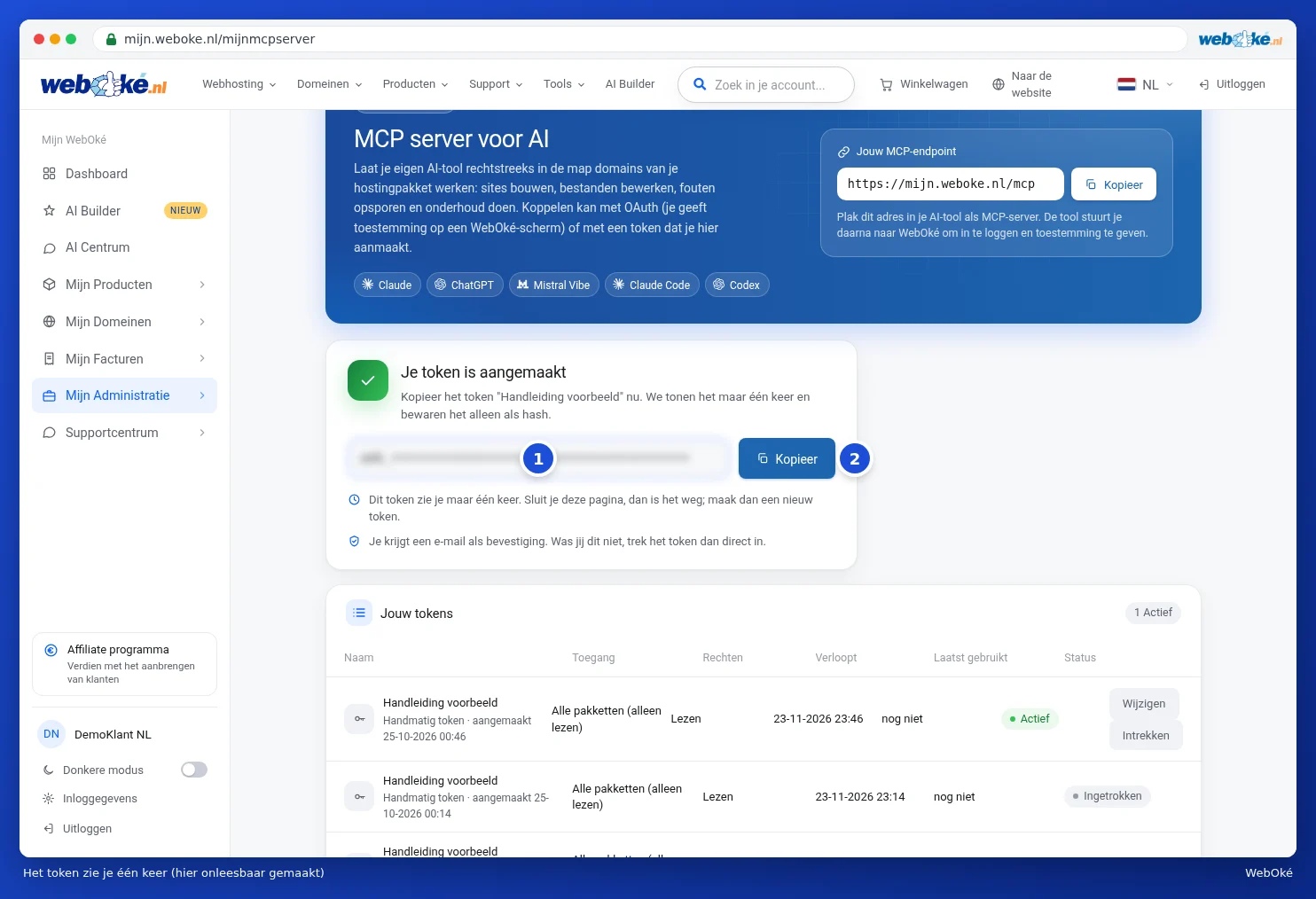
You'll find how to put the token in your tool at the bottom of the page under Connect manually with a token (advanced). Replace TOKEN in the examples with your own token.
Managing your connections and tokens
Under Your tokens you'll find all your connections and tokens, with the access, the permissions, when they expire, when they were last used and the status. Use Change to adjust the packages or access. Use Revoke (1) to switch off a token or connection immediately: tools using it stop straight away. Under Recent activity you'll see for each token when it was used and what action it performed.

Please note: whatever you request through your AI tool goes to that tool and its provider. We never forward anything ourselves. Treat a token like a password and revoke it immediately if you think someone else has got hold of it. After a password change, your tokens will no longer work.