
Chapter 4 · 4.3
Language, dark mode and the tour
Changing the language
My WebOké is available in many languages. In the top right, you'll see the language you're currently working in, for example EN with a small flag (1).
- Click the language in the top right.
- Choose a language from the list.

The page you're on reloads in the chosen language. You'll stay logged in. For some languages, the address in the address bar also changes, for example my.weboke.nl for English.
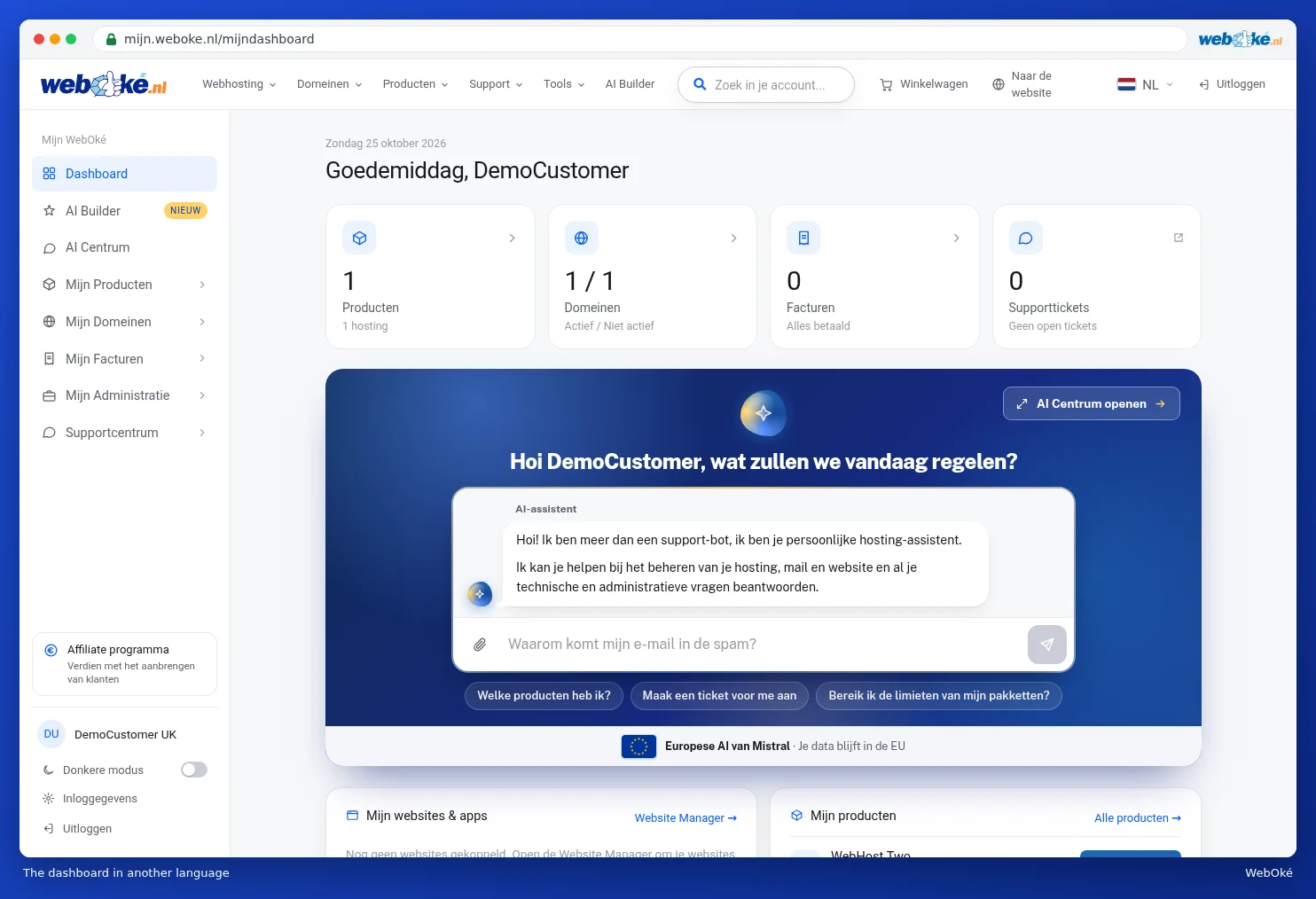
Please note: are you the owner of the account? Then the language you choose also becomes the language of your account. From then on, you'll receive your e-mails, invoices and tickets in that language. If you don't want that, simply choose your own language again. You can also see your account language at Changing your details and invoice address.
Dark mode
Do you work in the evening, or do you simply prefer a dark screen? Then switch on dark mode.
- Click the switch next to Dark mode at the bottom left of the menu (1).
- My WebOké immediately turns dark. Click again to go back to light mode.

Your choice is remembered in your browser. If you log in on another computer or in another browser, you'll need to switch it on separately there.
The tour
The first time you visit My WebOké, a tour starts automatically. In ten short steps, we show you the most important parts: the search bar, your websites, your products, My Administration, DNS, your domain contacts, the Website Manager, the support centre and dark mode.

- Click Next for the next step. The part the step is about lights up.
- Use Back to go back a step.
- Use Skip to stop the tour. On the last step, click Get started.
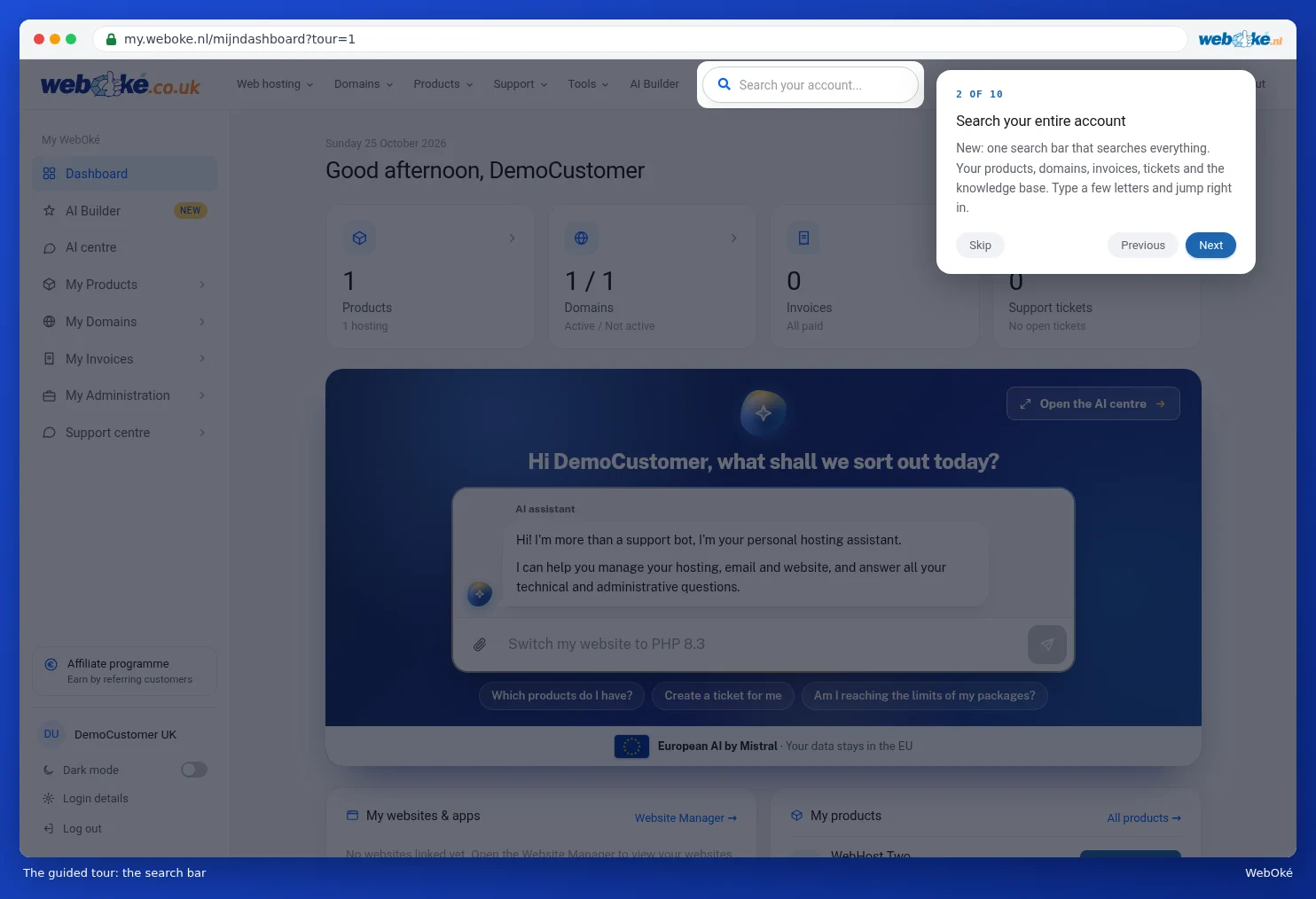
Would you like to see the tour again later? Then open the dashboard with ?tour=1 after the address: my.weboke.nl/mijndashboard?tour=1. The tour will also start again the first time you use another browser or device.