
Chapter 5 · 5.7
Setting up and adding to SPF
An SPF record tells the world which servers are allowed to send e-mail on behalf of your domain. Recipients such as Gmail, Outlook.com and KPN check this. If a mail comes from a server that's not in your SPF record, it's more likely to end up in spam or be rejected.
The default SPF record at WebOké
Every hosting package already has an SPF record:
v=spf1 a mx include:webawere.nl ~all
| Part | Meaning |
|---|---|
| v=spf1 | This is an SPF record. |
| a | The server your domain points to is allowed to send mail. |
| mx | The servers from your MX records are allowed to send mail. |
| include:webawere.nl | All WebOké mail servers are allowed to send mail. |
| ~all | No other servers are allowed; mail from other servers is treated as suspicious (soft fail). |
A maximum of one SPF record
A domain may only have one SPF record. If there are two records starting with v=spf1, recipients will reject them both, which is worse than having no SPF at all. If another service asks you to add an SPF record, don't create a second record, add to the existing one instead.
Adding a service to your SPF record
Do you also send mail through another service, such as Microsoft 365, Google Workspace, Mailchimp or your accounting software? Add that service using include:.
- Open DNS Administration.
- Click the pencil next to the TXT record starting with v=spf1.
- DirectAdmin opens the record with TXT Record Type set to SPF, so you can edit it in parts.
- Under Include Domain, enter the domain the service gives you, without include: in front of it, for example spf.protection.outlook.com. Use the plus button to add a line for another service.
- Leave webawere.nl in place, even if your mail runs through another provider. Your website and forms send mail through our servers.
- Check at the bottom under Value how the full record will look, then save it.
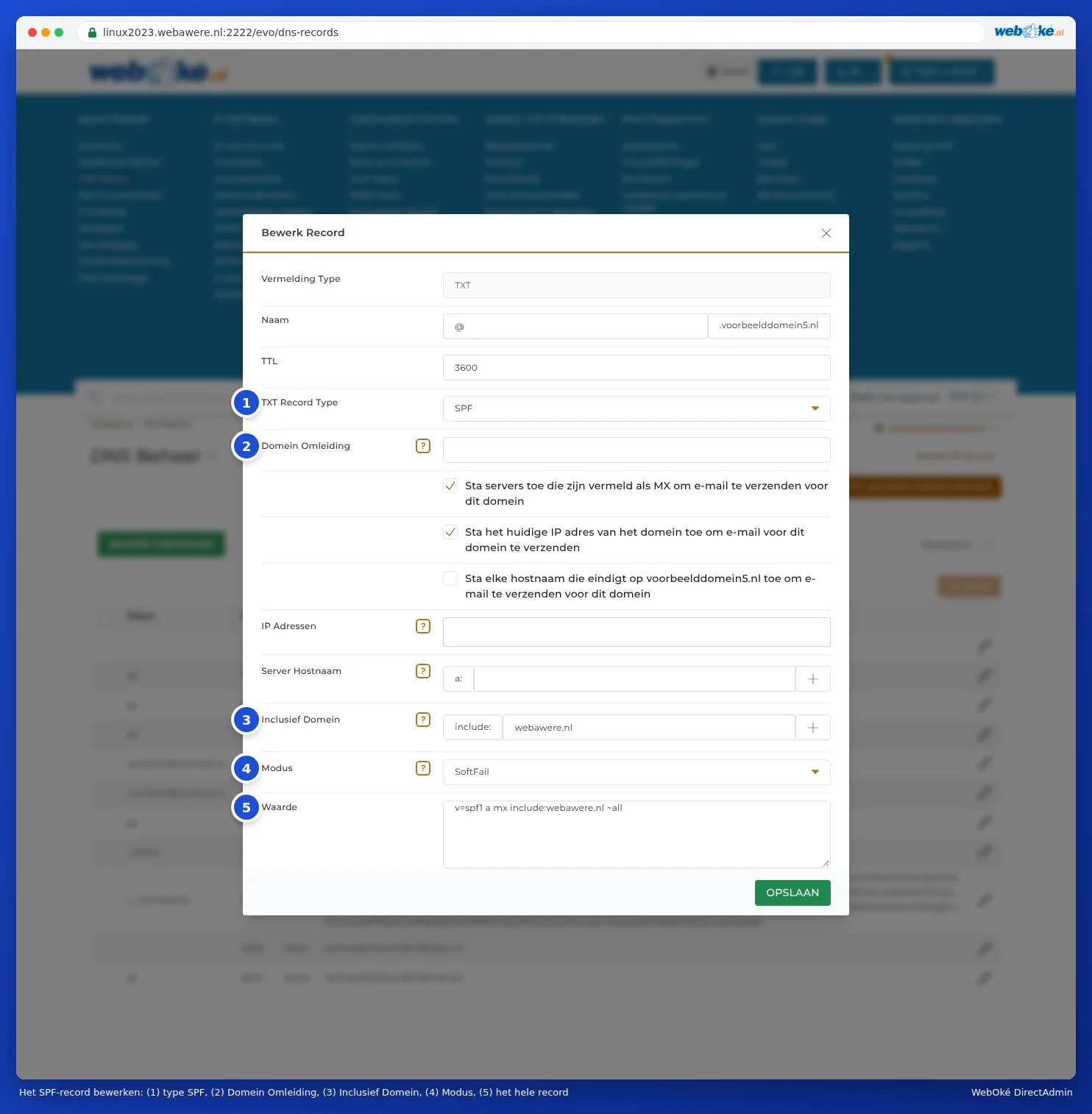
The other fields:
- Redirect Domain: take over the SPF policy of another domain. If you use this, the other fields don't count. Leave it empty.
- The three checkboxes Allow servers listed as MX, Allow the current IP address of the domain and Allow any hostname ending in yourdomain.nl: these are mx, a and ptr. Leave them as they are.
- IP Addresses and Server Hostname: a separate server that's allowed to send mail, by IP address or name.
- Mode: what happens to mail from other servers. SoftFail (~all) marks the mail as suspicious, Fail (-all) has it rejected, Neutral (?all) says nothing. We recommend SoftFail.
Commonly used includes:
| Service | Include Domain |
|---|---|
| Microsoft 365 | spf.protection.outlook.com |
| Google Workspace | _spf.google.com |
Always use the value the service itself provides: this value can change.
Please note: An SPF record may not require more than ten lookups during a check (such as with include, a and mx). If you add many services, you may reach this limit and recipients will reject the record. Remove services you no longer use.
Tip: In My WebOké, the DNS screen also has an SPF helper with buttons for Microsoft 365 and Google Workspace (see DNS in My WebOké and with external name servers such as Cloudflare).