
Chapter 15 · 15.2
SSH Keys and logging in with SSH
With SSH, you work on the server via a command line: managing files, using Composer or WP-CLI, importing a large database. At WebOké, you log in with an SSH key, not a password. You add that key in DirectAdmin under SSH Keys.
Which packages have SSH?
SSH is included in the Power Webhost Three, Power Webhost Four, AI Wordpress Three and Power Reseller packages. The other packages, such as WebHost One, WebHost Two, AI Wordpress One, AI Wordpress Two and the other reseller packages, don't have SSH. If you don't see SSH Keys and Terminal in your menu, SSH isn't included in your package (see Ik zie een functie niet die in deze handleiding staat).
The connection details
| Detail | Value |
|---|---|
| Server | The server name of your package, for example linux2023.webawere.nl (see Finding your server name and DA user name) |
| Port | 1967 (not the standard port 22) |
| Username | Your DA username |
| Log in | Only with an SSH key |
On a Mac, Linux or in Windows Terminal, you connect like this: ssh -p 1967 username@linux2023.webawere.nl
Step 1: create a key pair on your own computer
An SSH key consists of two parts: a private key that stays on your own computer and that you never share, and a public key that you place on the server. If you don't have a key yet, create one:
- Open a terminal on your computer (on Windows: Windows Terminal or PowerShell).
- Type ssh-keygen -t ed25519 -C "laptop" and press Enter.
- Press Enter to use the default location. When asked for a password (passphrase), it's best to choose one: that way the key is useless if someone steals your laptop.
- Your public key is now in the file id_ed25519.pub in the .ssh folder in your user folder. Open that file and copy the whole line. It starts with ssh-ed25519.
Step 2: add the public key in DirectAdmin
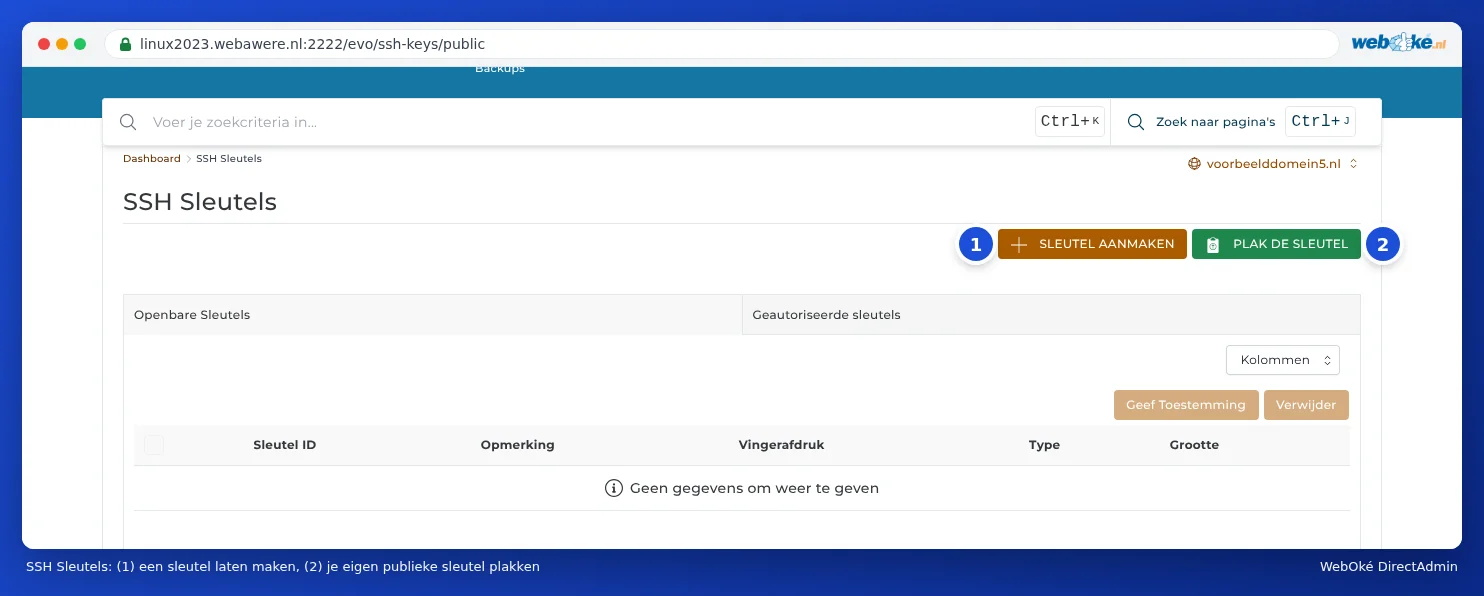
- In DirectAdmin, under Advanced Features, click SSH Keys.
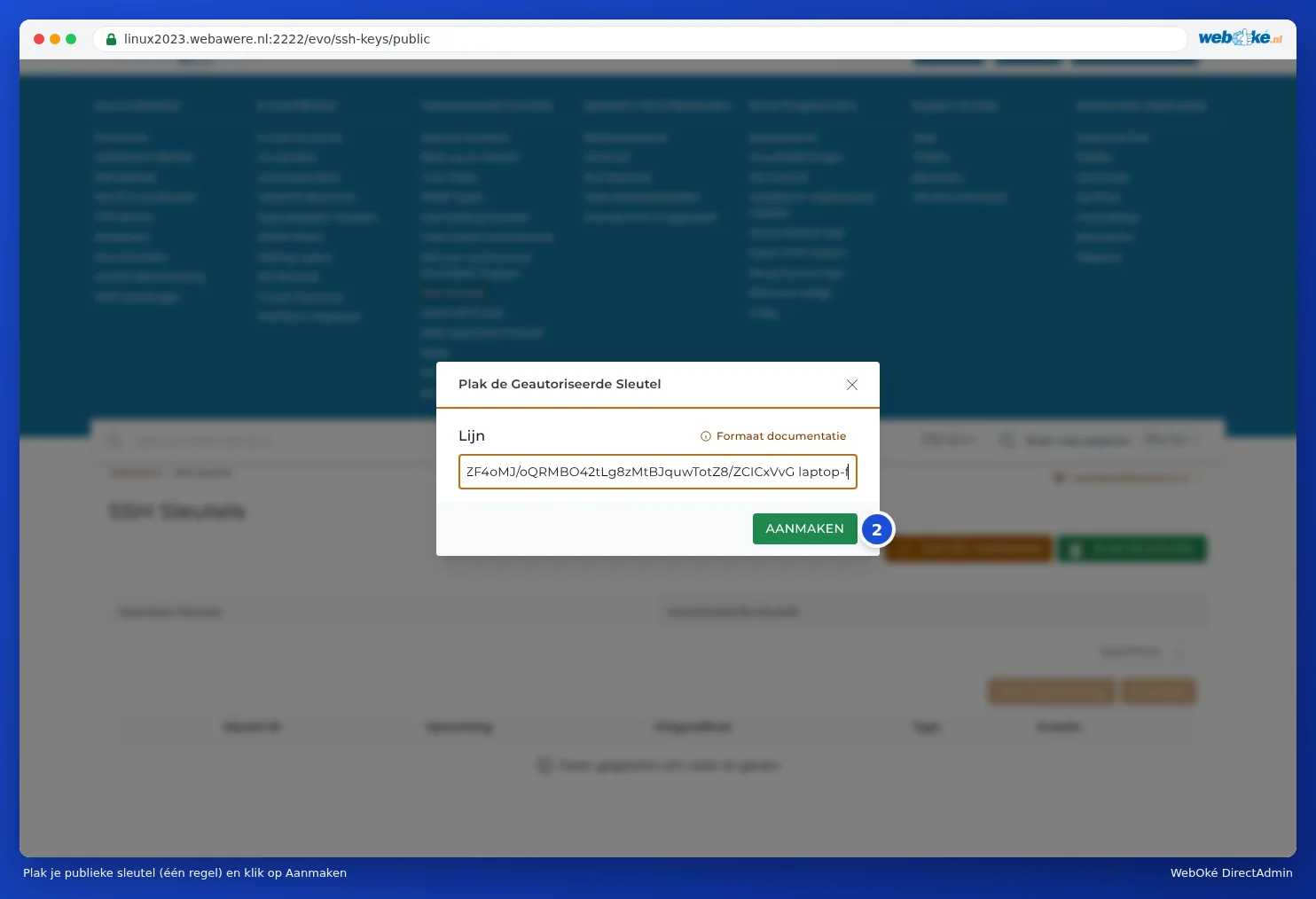
- Click PASTE KEY.
- At Line, paste your public key, as a single line.
- Click CREATE.
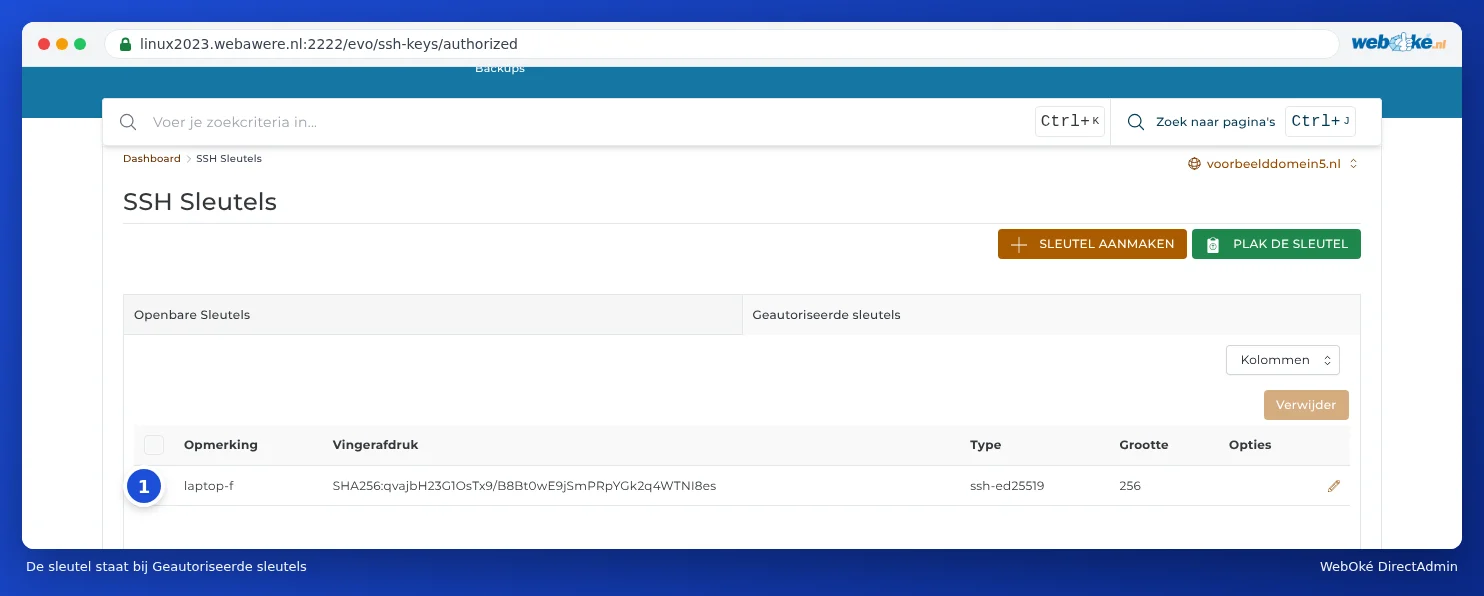
The key then appears on the Authorized Keys tab. Only keys in that list are allowed to log in.
Step 3: connecting
In your terminal, type ssh -p 1967 username@servername. The first time, your computer will ask whether you trust the server: type yes. You're now logged in to your own folder, /home/username. If you use PuTTY or a program like FileZilla (SFTP), also choose port 1967 and your private key.
Having DirectAdmin create a key
With CREATE KEY (1), DirectAdmin creates a key pair on the server. This is possible, but afterwards you'll need to securely transfer the private key to your own computer. A key you create yourself on your computer is more secure, as the private key then never leaves your computer.
Revoking a key
No longer using a computer, or has a web developer finished their work? Tick their key on the Authorized Keys tab and click Delete. That key will then immediately no longer be able to log in.
Frequently asked questions
The connection closes immediately or I get "Permission denied (publickey)".
Check that you're using port 1967, that the correct public key is listed under Authorized Keys, and that your program is using the matching private key. After a few failed attempts, your IP address may get blocked; you can check this in Mijn WebOké under Ben ik geblokkeerd? (see Solving login problems).
DirectAdmin says my key is invalid.
Paste the public key (the .pub file), not the private key, and make sure it's a single line. A key from PuTTYgen needs to be converted to the OpenSSH format first (in PuTTYgen: the box "Public key for pasting into OpenSSH authorized_keys file").
Can I use Composer or WP-CLI without SSH?
With the Terminal in DirectAdmin, you can also work on the command line, without a key (see Terminal in your browser). Composer and WP-CLI are available there as composer and wp. The Terminal is also only available with packages that include SSH.