
Chapter 15 · 15.27
Converting an old 4:3 presentation to widescreen 16:9
Old presentations are often made in the "square" 4:3 format. On a modern TV or projector, this leaves black bars on the left and right. Here's how to convert them to widescreen.
Step by step
- First, make a copy: File, Save Copy As. This way you keep the original.
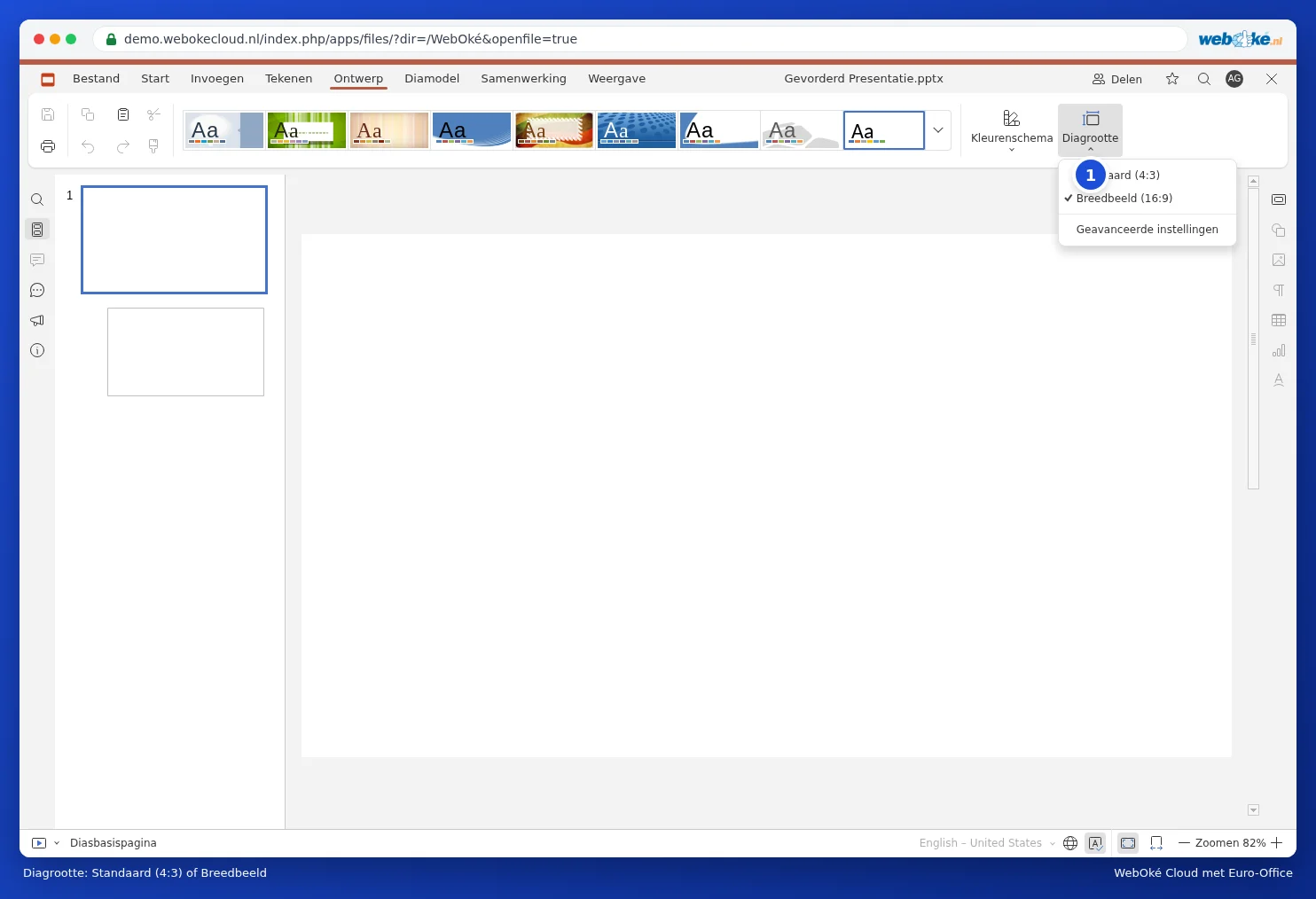
- Go to the Design tab and click Slide size (1).
- Choose Widescreen.
- Go through all the slides.
After converting
- Stretched images and logos: click the image and reset the size on the right to the correct ratio (lock the ratio and adjust the width). Or delete the image and paste it again from the copy.
- Check the slide master: a logo on the master page is adjusted there, and this appears on every slide. See Add your logo to every slide at once.
- Empty space on the sides: make text boxes wider or add an image next to them.
Pitfalls
- A presentation with many separate elements per slide requires manual work. For large presentations, start with the slides that are used most often.
- Does the presentation still need to work on an old 4:3 projector? Then keep the original alongside the new version.