
Chapter 16 · 16.10
Putting a public calendar or booking page on your website
Do you want visitors to your website to see your activities, such as your club's matches, your practice's opening hours or your association's courses? Or do you want customers to book an appointment through your website? Your WebOké Nextcloud makes this possible, without extra programs.
Preparation: a separate calendar for your website
Anyone can see everything in a public calendar, including the title, time, location and description. So create a separate calendar, for example Website activities, and only add appointments there that everyone may see.
- Open the Calendar app and click the plus sign next to My calendars.
- Choose New calendar and give it a name (see Subscribing to an external calendar and importing a calendar).
Putting the calendar on your website
- Hover over the calendar and click the pencil icon, or click the three dots and then Edit and share calendar.
- Click the plus sign next to Share link. The calendar now has a public link.
- Open the menu next to the link and choose Copy embedding code.
- Paste the code into your website at the spot where the calendar should appear, as HTML. In WordPress, use the Custom HTML block for this; in other website builders it's often called an HTML block, embed or insert.
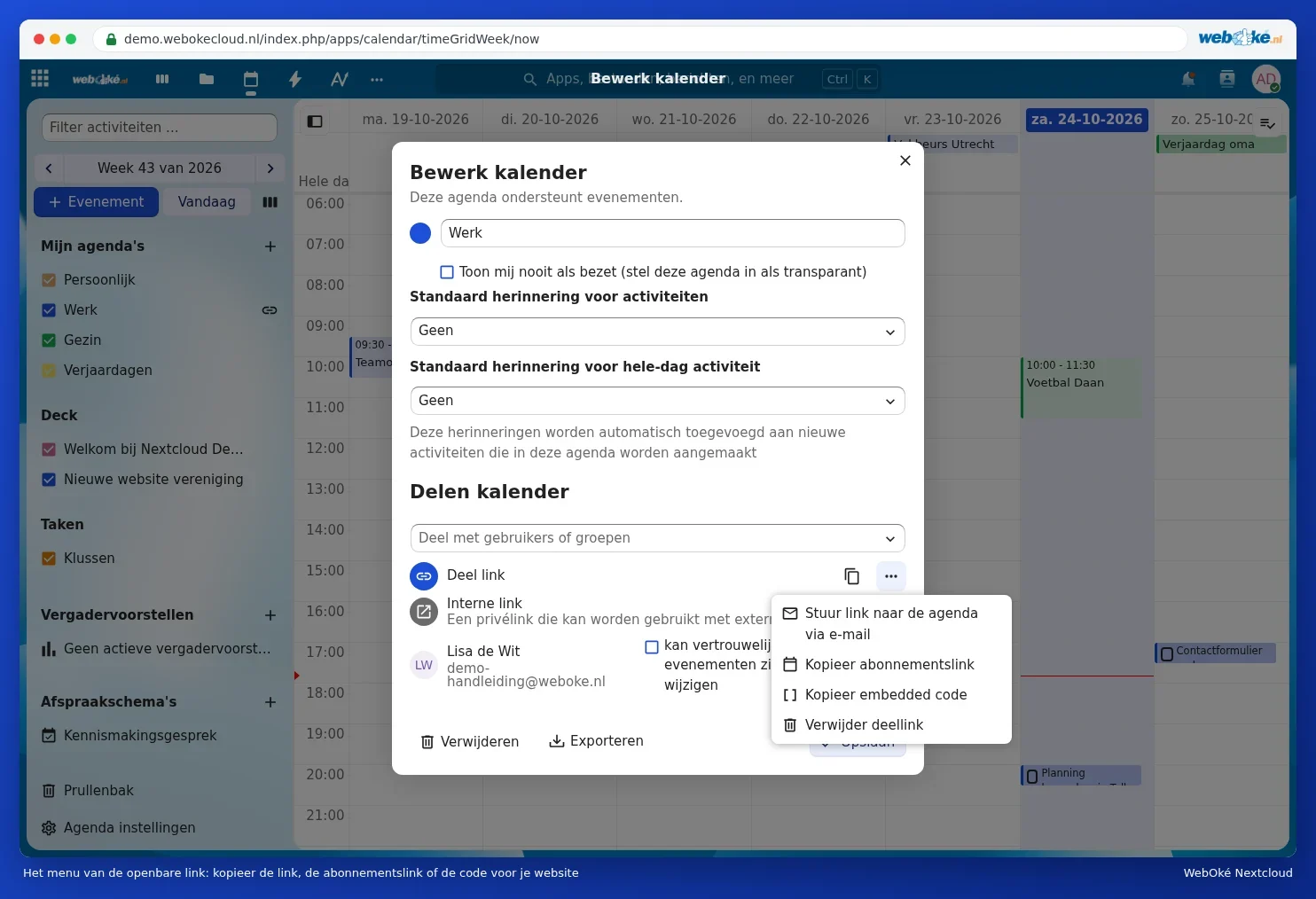

The code is a window (iframe) containing your calendar. If you change an appointment in your Nextcloud, the visitor will see the new version as soon as they reload the page.
Tip: do you want visitors to be able to add your activities to their own calendar? Then also put the subscription link on your website, with the text "Add our activities to your calendar". Anyone who adds that link to their calendar app will automatically see new activities appear.
A booking page on your website
With an appointment schedule, customers can choose a free time slot themselves (see Letting people book appointments through a booking page). Put the link to your booking page on your website:
- as a button, for example "Book an introductory call", that links to your appointment schedule. This works with any website builder;
- or in your email signature and on your business card.
The customer only sees the free time slots, not anything else in your calendar.
Stopping sharing
Open Edit and share calendar again, open the menu next to the link and choose Delete share link. The calendar on your website and all subscriptions will then stop working. If you create a new link later, it will have a different address, so you'll need to replace the code on your website.
Please note: don't put names, phone numbers or other personal data in a public calendar. Anyone with the link, and also search engines that read your website, can see them.